 2e6c8d5da4
Signed-off-by: Victor-ray, S <12261439+ZendaiOwl@users.noreply.github.com>
Signed-off-by: Tobias Knöppler <6317548+theCalcaholic@users.noreply.github.com>
8.8 KiB
English | Traditional Chinese 繁體中文 | Simplified Chinese 简体中文
(The translated README pages are not updated at this time)
NextcloudPi






This is the build code for NextcloudPi.
NextcloudPi is a ready to use image for Virtual Machines, Raspberry Pi, Odroid HC1, rock64 and other boards (⇒Downloads).
This code also generates the NextcloudPi docker image, LXD and VM, and includes an installer for any Debian based system.
Find the full documentation at docs.nextcloudpi.com


Features
- Raspberry Pi OS/Debian 11 (Bullseye)
- Nextcloud
- Apache, with HTTP2 enabled
- PHP 8.1
- MariaDB
- Redis memory cache
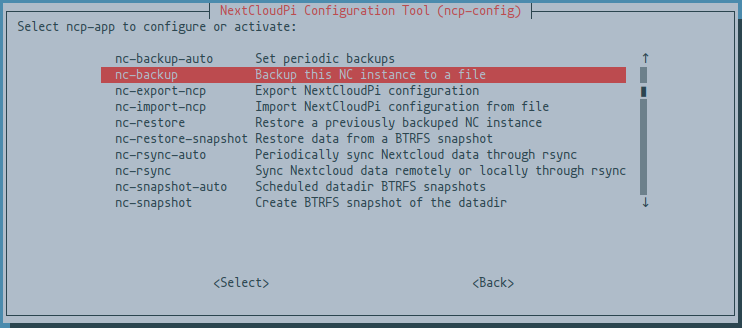
- ncp-config TUI for easy setup ( RAM logs, USB drive and more )
- Automatic redirection to HTTPS
- ACPU PHP cache
- PHP Zend OPcache enabled with file cache
- HSTS
- Cron jobs for Nextcloud
- Sane configuration defaults
- Full emoji support
- Postfix email
- Secure
Extras
- Setup wizard
- NextcloudPi Web Panel
- Wi-Fi ready
- Ram logs
- Automatic security updates, activated by default.
- Let’s Encrypt for trusted HTTPS certificates.
- Fail2Ban protection against brute force attacks.
- UFW firewall
- Dynamic DNS support for no-ip.org
- Dynamic DNS support for freeDNS
- Dynamic DNS support for duckDNS
- Dynamic DNS support for spDYN
- Dynamic DNS support for Namecheap
- dnsmasq DNS server with DNS cache
- ModSecurity Web Application Firewall
- NFS ready to mount your files over LAN
- SAMBA ready to share your files with Windows/Mac/Linux
- USB automount
- Remote updates
- Automatic NCP updates
- Automatic Nextcloud updates
- Update notifications
- Nextcloud backup and restore
- Nextcloud online installation
- Format USB drive to BTRFS
- BTRFS snapshots
- Automatic BTRFS snapshots
- BTRFS snapshot auto sync
- scheduled rsync
- UPnP automatic port forwarding
- Security audits with Lynis and Debsecan
- ZRAM
- SMART hard drive health monitoring
Extras can be activated and configured using the web interface at HTTPS port 4443

Or from the command line using
sudo ncp-config
Run in docker
docker run --detach \
           --publish 4443:4443 \
           --publish 443:443 \
           --publish 80:80 \
           --volume ncdata:/data \
           --name nextcloudpi \
           ownyourbits/nextcloudpi $DOMAIN
$DOMAIN can also be the IP-address of the host device if you're accessing it via IP-address in your local home network.
Can also be run with the --init flag for zombie process reaping
docker run --detach \
           --init \
           --publish 4443:4443 \
           --publish 443:443 \
           --publish 80:80 \
           --volume ncdata:/data \
           --name nextcloudpi \
           ownyourbits/nextcloudpi $DOMAIN
It takes a moment to start completely, check with docker logs nextcloudpi until it says Init done
Run in LXD
# Imports the LXC image, replace the X's with version number
lxc image import "NextcloudPi_LXD_vX.XX.X.tar.gz" --alias "nextcloudpi"

# Launches a container from the image
lxc launch "nextcloudpi" ncp

# Starts the container you've launched from the imported image
lxc start ncp
Run in Proxmox
Use the install script from tteck to install the LXC container on your Proxmox instance
He has multiple helper scripts available for Proxmox on his website, do go have a look if you're using Proxmox. 👍
Installation: bash -c "$(wget -qLO - https://github.com/tteck/Proxmox/raw/main/ct/nextcloudpi-v5.sh)"
Default Settings: 2GB RAM - 8GB Storage - 2vCPU
(Check his website if this has changed and we haven't had the time to update it here yet, it's located under: Media - Photo > NextcloudPi LXC)
Thenk you tteck ❤️ for making the helper script & letting us use this for Proxmox installations 🙏
You can find his GitHub repository with his helper scripts here.
How to build
Packages
apt-utilsapt-transport-httpsbuild-essentialbinfmt-supportbinutilsbzip2ca-certificateschrootcroncurldialoglsb-releasejqgitpsmiscprocpswgetwhiptailqemuqemu-user-staticdocker(If you're building a Docker image)lxd(If you're building an LXD/LXC container image)
Raspberry Pi img
git clone https://github.com/nextcloud/nextcloudpi.git
cd nextcloudpi
./build/build-SD-rpi.sh
Armbian-based board
./build-SD-armbian.sh odroidxu4 # supported board code name
In order to build the Docker images, you'll also need to change the username, repo and tags in the script to match your credentials at Docker Hub.
git clone https://github.com/nextcloud/nextcloudpi.git
cd nextcloudpi
build/build-docker.sh x86
build/build-docker.sh armhf
build/build-docker.sh arm64
LXD
./build/build-LXD.sh
NextcloudPi can be installed in any architecture running the latest Debian
Note: this assumes a clean Debian install, and there is no rollback method
Curl install scripts
# curl -sSL https://raw.githubusercontent.com/nextcloud/nextcloudpi/master/install.sh | bash
Downloads & Links
(Use the Forum for Support questions please, there's a NCP tag available, it will bridge your post to the Matrix and Telegram chats)